How to Use Otterdock Widgets on macOS Desktop and Notification Center
Select a group, then click any individual app, file, folder, or link to open it directly. Widgets are included for free in both editions.
Widgets are available for free in both editions across small, medium, and large sizes on the desktop or in Notification Center. Simply select a group for a widget and click any individual item to open it. The free tier supports up to 8 items per group.
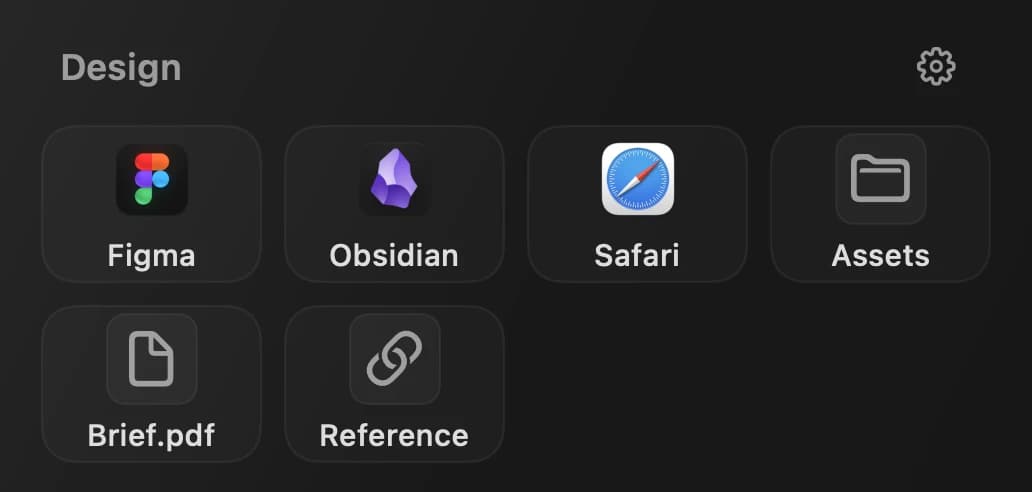
What an Otterdock widget does
Each widget displays one selected group on your desktop or in Notification Center, keeping items within reach for writing, coding, or client workflows. Click any individual item to open it immediately.
The widget does not create a second copy of your group and does not replace the Dock. It points to the group you already maintain in Otterdock, so the Dock, widget, and keyboard entry point (available in Direct edition) can share the same organization.
Set up a desktop widget in four steps
- Add the widget. Search for Otterdock in the macOS widget gallery, select your preferred size, and add it to your desktop or Notification Center.
- Choose a group. To change the displayed group, edit the widget and select your preferred group from the list.
- Match the size to the job. Use small for a compact launcher, medium when you want more context, and large when the workflow benefits from a broader visual entry point.
- Keep the group focused. Mix only the apps, files, folders, and links you use in that context. Reorder the most common actions toward the top.
| Widget size | Best for | Example group |
|---|---|---|
| Small | One compact entry point | Daily writing tools |
| Medium | A visible reminder of the workflow | Development tools and project files |
| Large | A broad visual entry point for a dense context | Client delivery with apps, folders, and references |
How to design a useful widget group
Start with the question “What am I trying to do?” rather than “Which apps do I own?” A Development group might contain an IDE, terminal, repository folder, issue tracker, and staging link. A Design group might contain Figma, an assets folder, a reference PDF, and an image editor.
Keep one group understandable without additional explanation. If a widget displays a long list of unrelated items, split it into two workflow groups instead. For mixed-item setup, see what changed in Otterdock 1.1.2.
Widgets, permissions, and editions
The direct download edition (Full) requires Accessibility permissions for clicking to open custom popups and for hover expansion. The Mac App Store edition uses native Dock folder stacks and does not require Accessibility permissions.
The current edition catalog lists desktop widgets across the Direct and Mac App Store free and Pro variants. Both editions are now available: the Mac App Store edition (v1.1.0) is officially live, and both editions offer a free download with an optional $6.99 Pro tier.
FAQ
What does a widget open?
A widget displays your chosen group. Clicking an item inside opens that specific app, file, folder, or link individually.
Can different widget sizes use different groups?
You can place widgets of different sizes and assign each to a distinct group across your desktop or Notification Center.
Should I put every app in one widget?
No. A focused group is easier to scan and more useful than a catch-all list. Create separate groups when tasks, files, or contexts differ.